
Each website builder, email platform and social media site has a slightly different way to add alternative text to images, and in some cases a way to indicate if an image is decorative. Our examples are from the platforms we use, and they’re current at the start of 2023. If you can’t find where to enter alternative text, consult the help section for whatever platform you’re using.
A note about this page as well, for each image on this page we consider it decorative because we’re explaining each image in detail. There’s no reason to have alternative text in these cases since there’s nothing else to convey about the image in the context of this page. Within the WordPress interface, that means we’ve checked the “” box and it also means within the HTML code inside the img tag you’ll find alt=”” so that a screen reader will ignore the images.
Website Platforms
WordPress
We’re using WordPress for this site so it’s a good place to start. You have a couple of options for uploading images in WordPress. First through the Media Library.
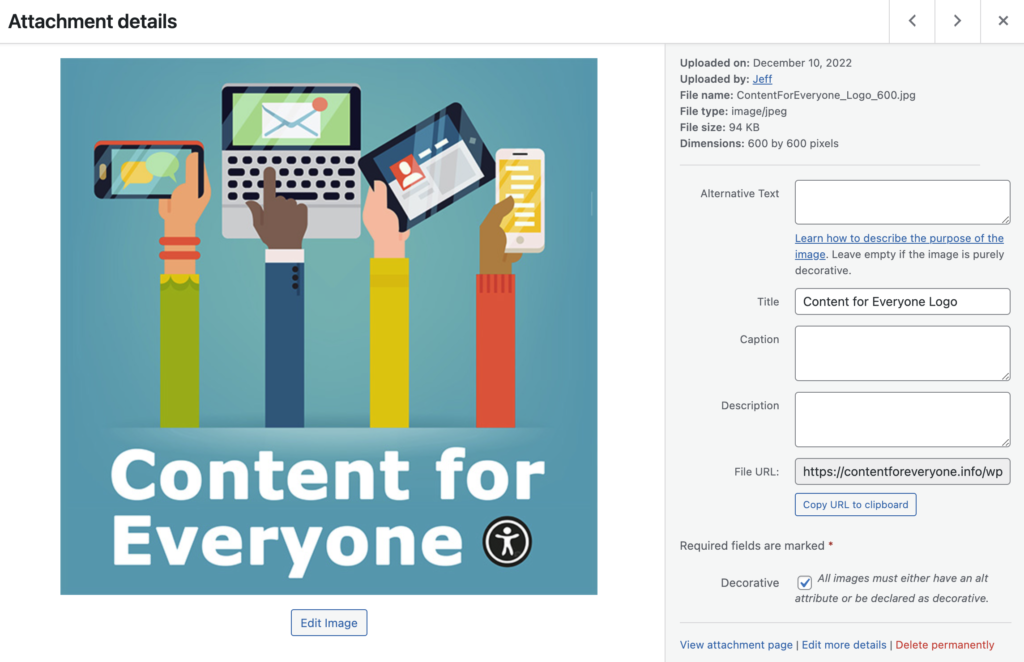
The other important element for alternative text within this panel of information is the checkbox for “Decorative,” which can be selected if the image doesn’t provide any additional information or play any role within the page other than visual interest. This can also be overridden when using the image, so you could check it on upload and change it later as you’re creating individual pages and posts.
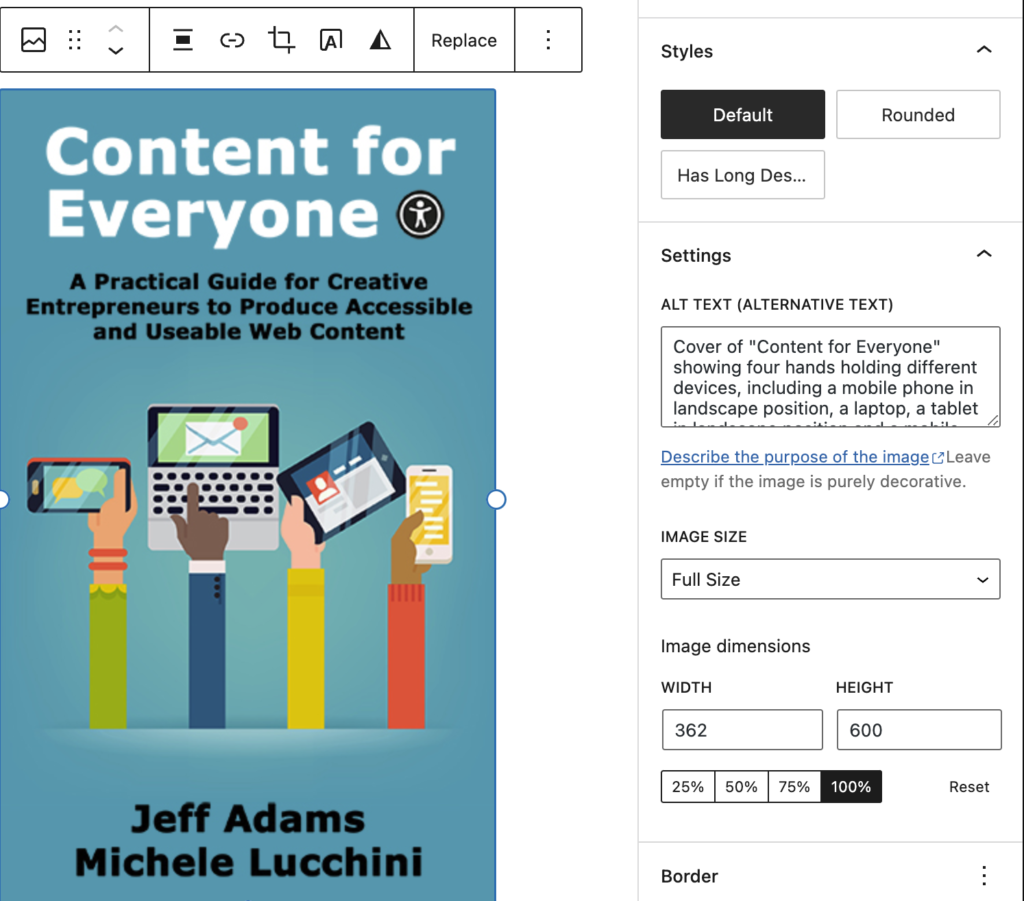
Wix
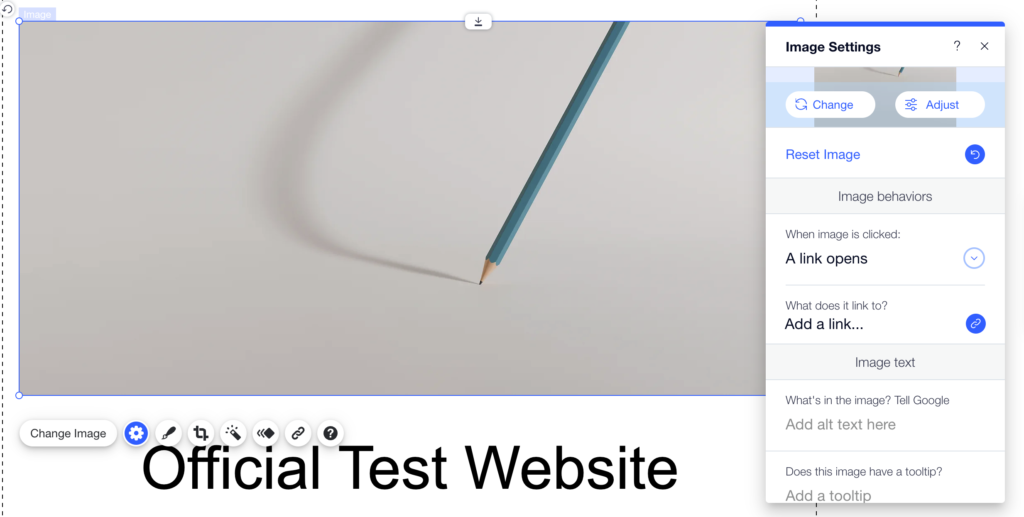
Wix approaches this differently.
You don’t have an option to set alternative text on image upload, but instead you do it as you add the image to the page. Once the image is on the page, you select it and from the menu that appears, select the “Gear” icon, which is also labeled as “Settings.” A new overlay appears with several Image Settings available, including an area for “Image Text.” Within “Image Text” are two fields, one labeled “What’s in the image? Tell Google.” It’s this one where the alternative text should be inserted. In the form field, the text reads “Add alt text here.” Be aware that Wix tends to pre-fill this field with the file name of the image so make sure you’re updating the field with something meaningful, or that you’re deleting the content so it’s blank for a decorative image.
Email Marketing Platforms
The only email platform we use is MailerLite Classic, but we expect most platforms to have similar features regarding alternative text entry.

Once you select an image to fill an image block in a Mailer Lite Classic template, controls appear that are labeled “Edit Image, “Alt,” Delete” (which is represented by a trash can icon), as well as a field to enter a URL if the image is to be a link and a check box if the link will open in a new tab. To add alternative text, select “Alt” and then enter the meaningful alternative text in the pop-up that appears and save it. Remember if the image is a link, your alt text should indicate where the link takes the user.
Social Media Platforms
For this section, we’re focusing on Facebook, Twitter and Instagram and how to add alternative text when you’re uploading via a mobile phone. For these examples, we’re using an iPhone. The functions are similar if you’re on an Android device, a tablet or using the desktop website. You should always take the step to add the alternative text when you’re uploading because you might forget to return to the post later to add it. Also, Facebook and Instagram will use Artificial Intelligence to describe the photo if you don’t. The AI, at best, will only describe the image and not the meaning of it in the context of your post (review examples of AI-generated alternative text on Facebook), so it’s better for you to put the alt text in as you’re making the initial post.
One last thing, if you’re using any kind of social media scheduler, check its help documentation to understand how to add alternative text while you’re scheduling. And if you’re using a scheduler that doesn’t allow you to add alternative text, you should look for a scheduler that does.
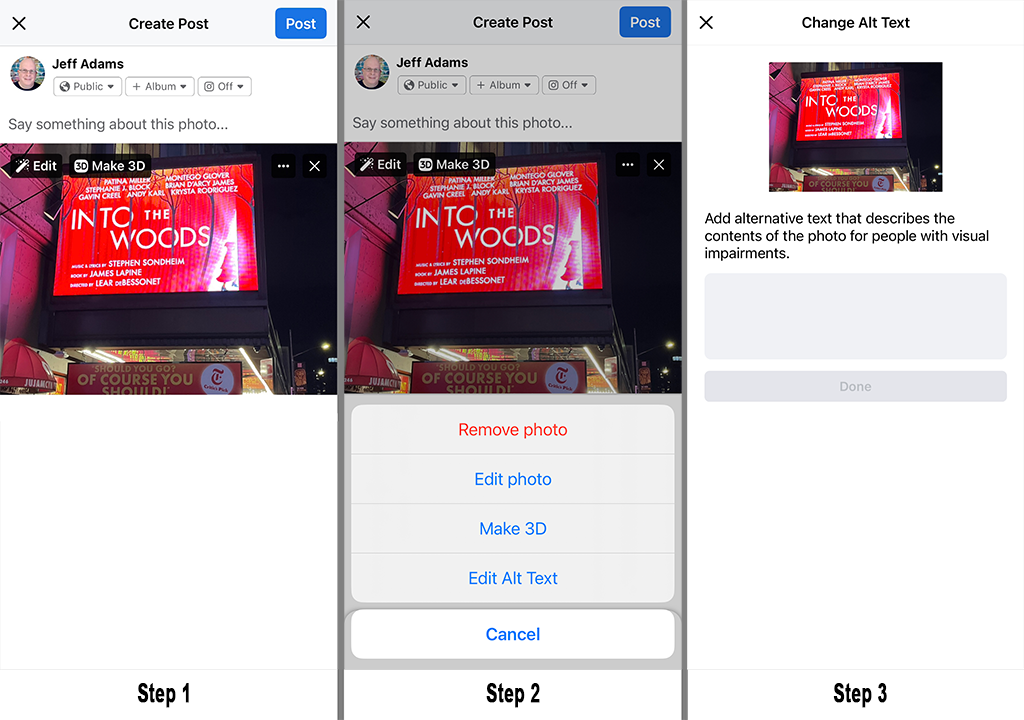
Image description: The three steps to add alternative text during an image upload on Facebook. Step 1 shows the post, along with the settings to adjust the image. Step 2 shows the menu where “edit alt text” is available. Step 3 shows the alt text entry screen.
Facebook has its alternative text entry featured tucked away. After the image is uploaded as part of the post, a few controls appear (showing in step 1 of the image), including “Edit,” “Make 3D, three dots that indicate another menu is present, and an “X” to delete the image. You must got to the menu behind the three dots, which opens the menu (showing in step 2) which repeats the other options and also includes one for “Edit Alt Text.” Going to “Edit Alt Text” gives you a screen with the image displayed and a form field to enter your alternative text (showing in step 3). Once you enter text, you can click “Done” to save it and finish you post.
Note, if you go to the “Edit Alt Text” screen after Facebook has had enough time to analyze the image and produce the AI description, that will also appear on the page.
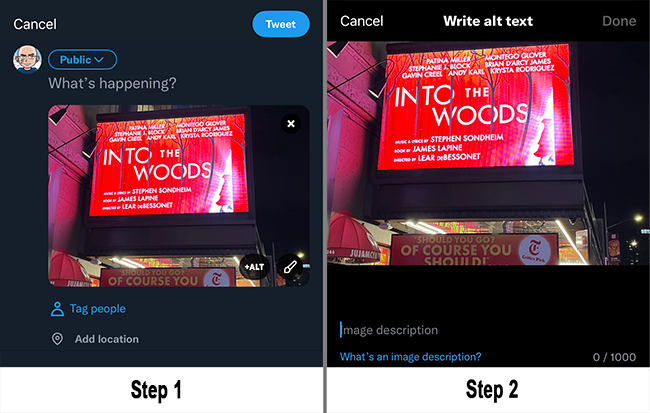
Image description: The two steps to add alternative text during an image upload on Twitter. Step 1 shows the post, along with the settings to adjust the image, including “+ALT.” Step 2 shows the entry field to add the “image description” (a.k.a alternative text).
Twitter makes it the easiest to enter alternative text. When you upload an image (such as shown in step 1), three buttons become active on the image–an “X” to remove the image, a paint brush icon that allows you to access image editing features, and “+ALT.” Going to “+ALT” brings you to a screen to write alt text (as shown in step 2). You can add the image description and then click “done” to finish the rest of the Tweet and post it.
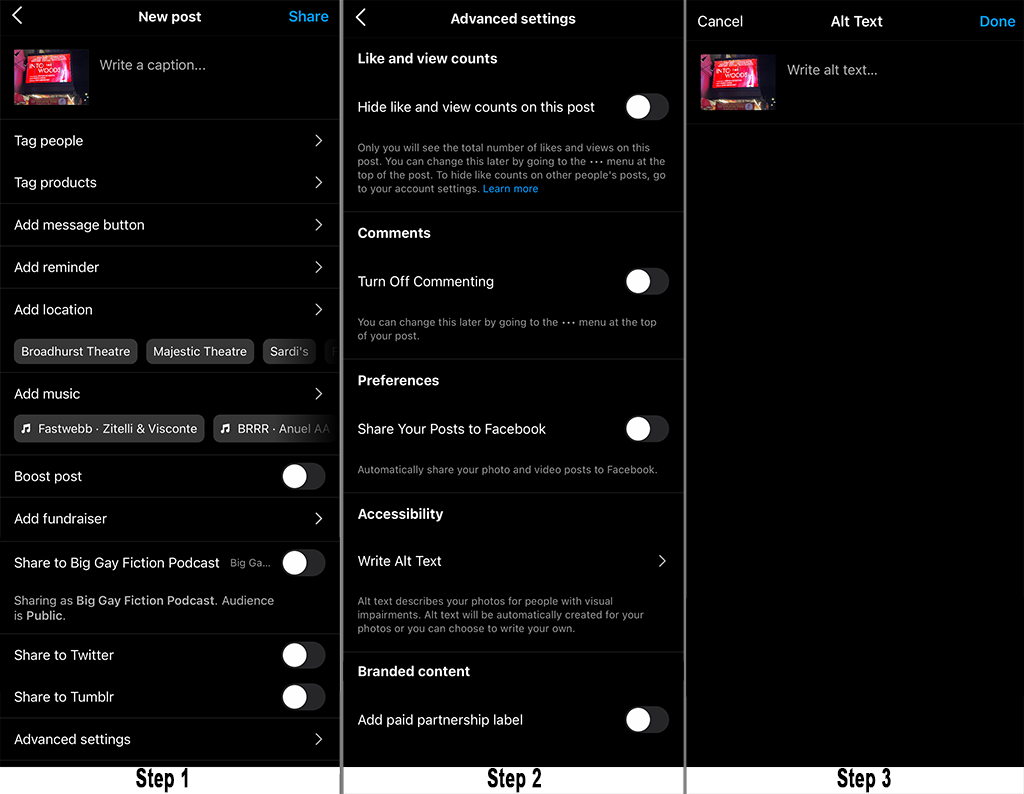
Image description: The three steps to add alternative text during an image upload on Instagram. Step 1 shows the and all of the different tags and settings for the image, including “Advanced Settings.” Step 2 shows the “Advanced Settings” menu where the “Write Alt Text” option is. Step 3 shows the alt text entry screen.
In our view, Instagram is currently the least user friendly for adding alternative text. Once you load the image for a post and move through the different edits and filters you can use, a long list of options displays to tag people, add reminders, and more (as shown in step 1). At the bottom of that list, which is so long you’ll probably have to scroll to find it, is “Advanced Settings.” Going to “Advanced Settings” offers more options, including “Write Alt Text.” Going there, gives you the form field to enter your alternative text and choose “Done” when you’re finished so you can step through the rest of Instagram’s post creation process.
Of course, what we’ve discussed on this page are the ways alternative text can be entered on a few popular platforms. As we said at the beginning, if you use a platform that’s not mentioned here, please take the time to find out how to add the alt text so your audience receives the information you post in the way that works best for them.